-
Click New Account in the top nav.
-
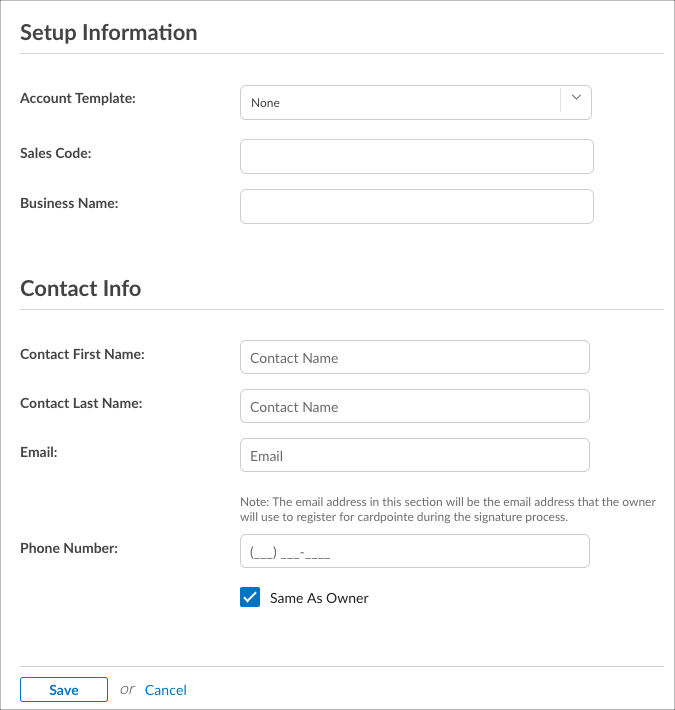
If you wish you use an existing application template, click the Account Template dropdown and select the desired template.
In this example, an existing application template was not selected in an effort to show you how to complete an application from scratch.
-
Complete the information for the new account in the "Setup Information" and "Contact Info" sections.
-
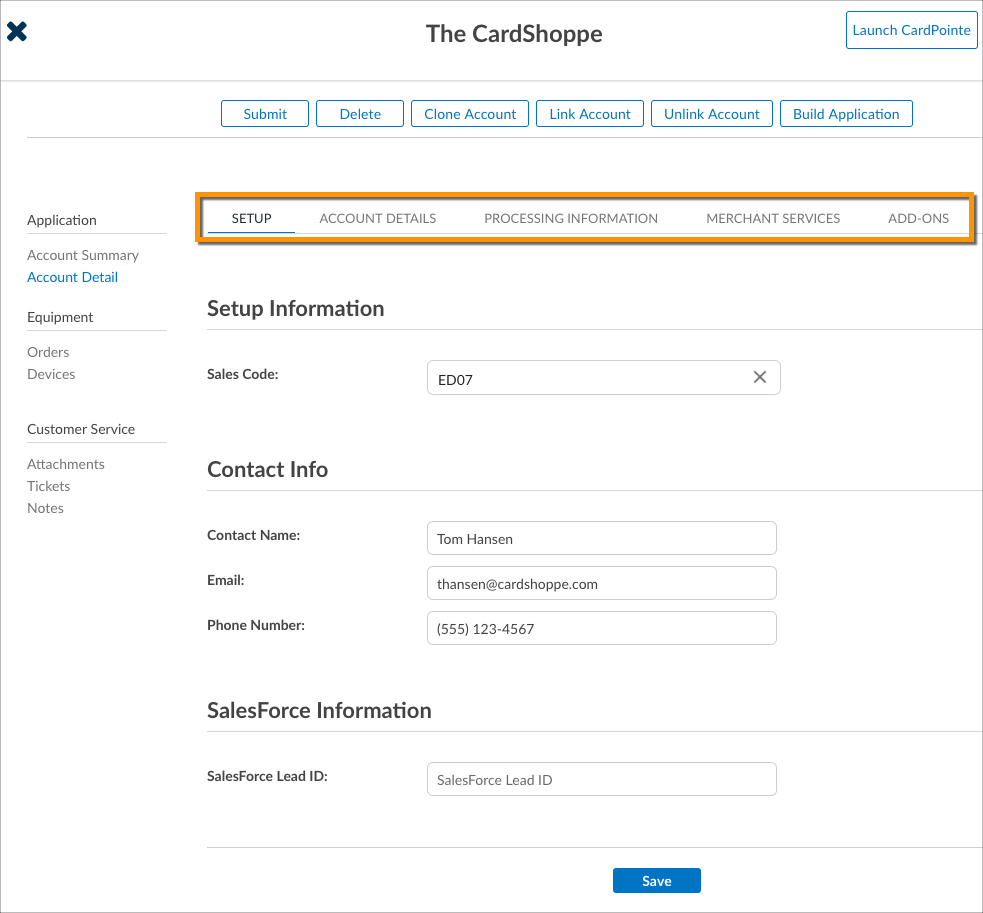
Click Save. The "Account Detail" screen displays with tabs that allow you input additional information about the merchant, including information related to their:
- Account Details
- Processing Information
- Merchant Services
- Add-Ons
-
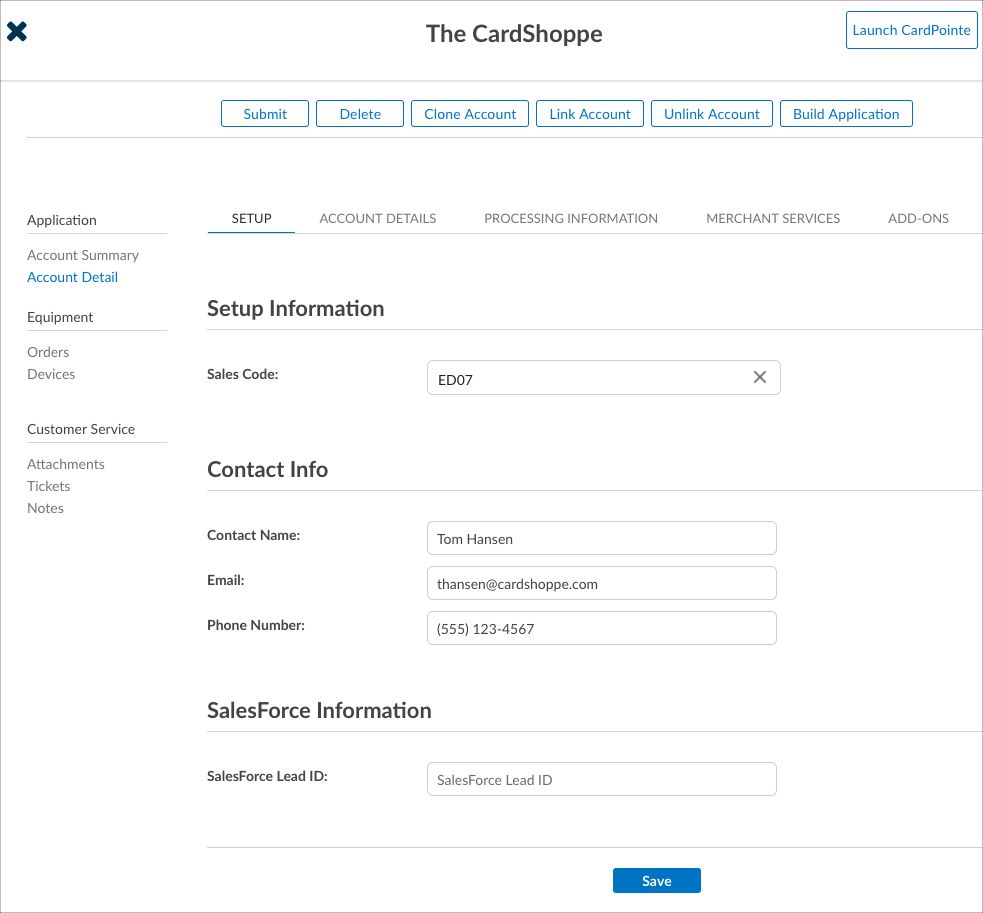
Upon completing the information on these respective tabs, click Save.
-
Now that you have added all of the necessary and supplemental information to the account, you are ready to send the application to the customer for review.
-
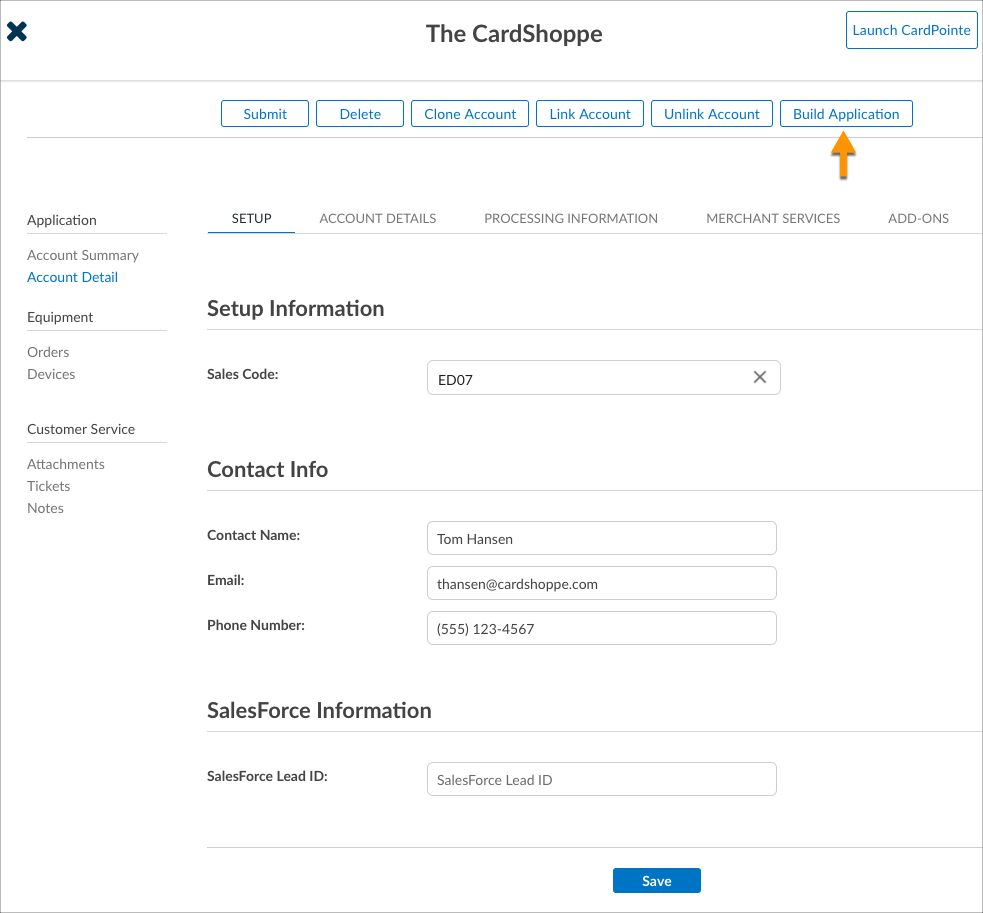
On the Account Detail screen, click Build Application.
-
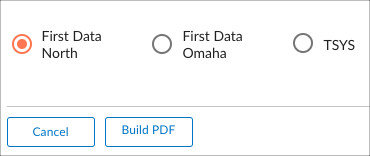
Select the platform to which the account will be boarded.
-
Click Build PDF to save a PDF version of the application to your.
-
After the merchant signs the application, you must scan the application and save it as a .PDF so that it can be uploaded into CoPilot.
-
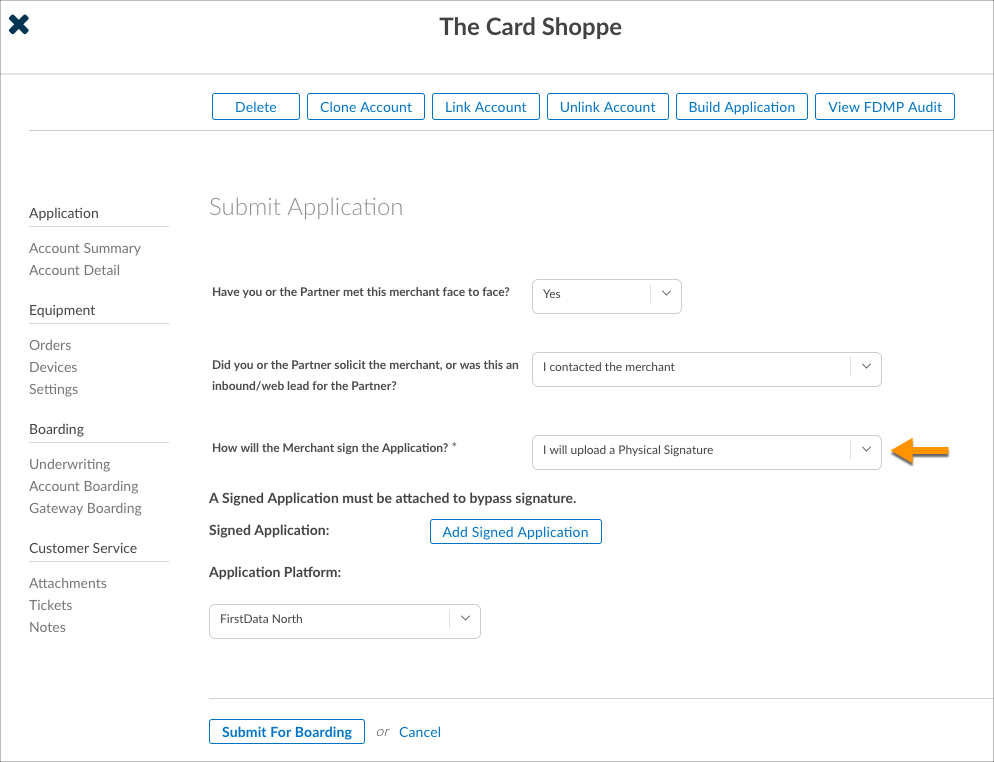
Click Submit. Before finalizing the application in CoPilot, we need to capture some additional details about the merchant and how they'll be signing the application. As part of this process, you are prompted to answer the following questions:
- Have you met this merchant face to face?
- Did you solicit the merchant, or did they solicit you?
- How will the merchant sign the application?
- Please be sure to choose I will upload a Physical Signature from this dropdown.
-
To upload the signed PDF application into CoPilot, click Add Signed Application.
-
Locate and select the PDF file on your computer.
-
Click Submit for Boarding. The application is submitted to our Qualifying/Underwriting team for review.



Overview
The instructions on this page explain how to submit a paper merchant application to CardConnect. Paper applications should only be used when absolutely necessary. All other applications should be submitted following the online application process.

Note: As part of the application process, merchants must have a valid email address in order to process payments with CardConnect.
Create an Account for a New Customer
To create an account for a new customer in CoPilot:
Interested in learning more about CoPilot? Check out the CoPilot user documentation on this site.