-
Click Dashboard in the left nav, and then select Application Templates.
-
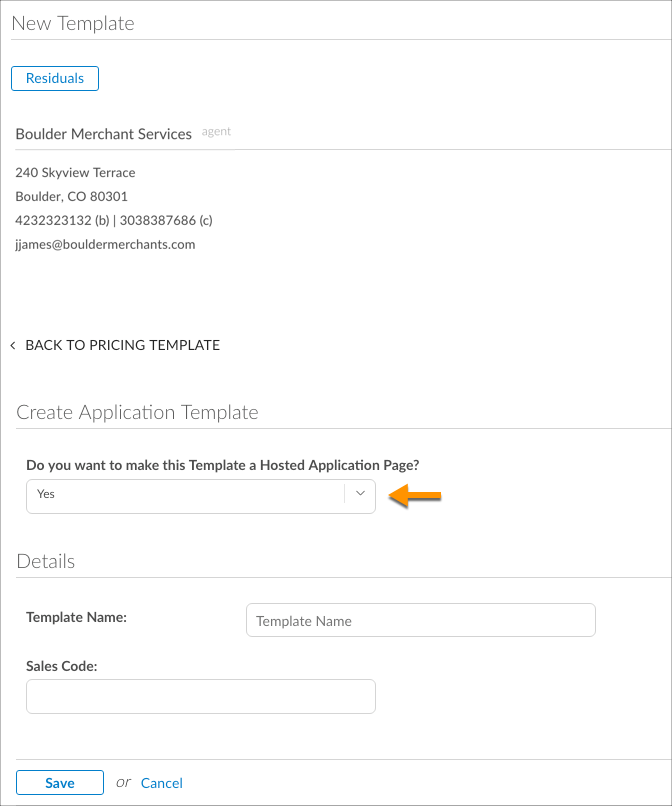
Click New Template.
-
Enter a name for the template in the Template Name field. For instance, if this is a template that you wish to reuse for merchants who operate gas stations, then you may choose to name it "Gas Station App Template".
-
Enter your sales code in the Sales Code field.
-
In the "Card Acceptance" section, select the boxes next to the payment card types that merchants can accept signing up using this application template.
-
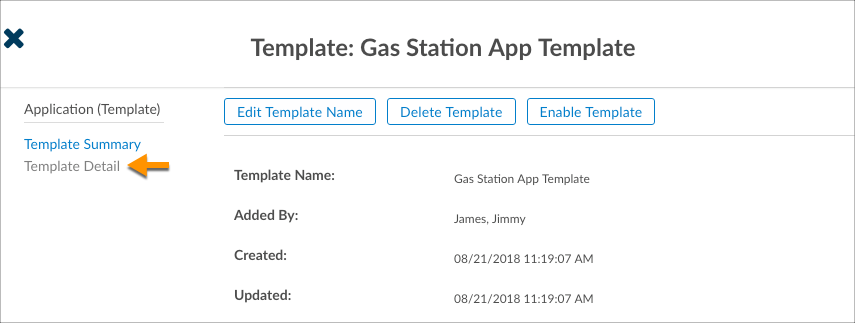
Click Save. The Template Summary screen displays. To continue creating the Hosted Application, click Template Detail.
-
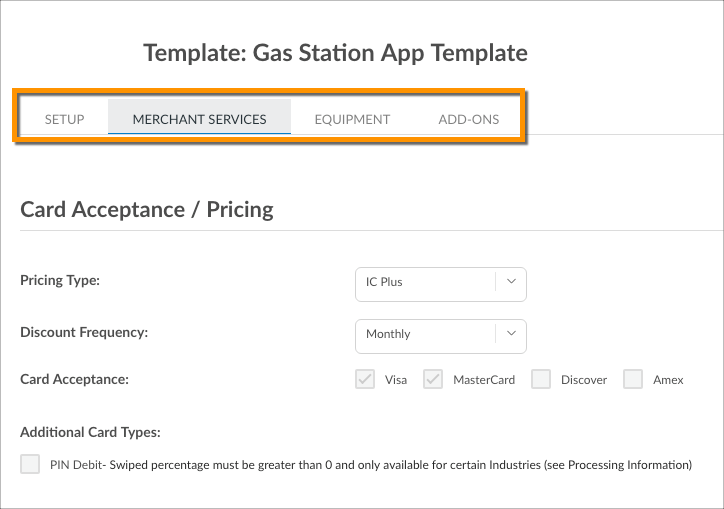
Configure the template to your needs by completing the information within the Setup and Merchant Services tabs. Additionally, you can choose the devices that will be available to the merchant on the hosted application from the Equipment tab, as well as any additional features (such as CardPointe Gateway, HPP, etc) from the Add-Ons tab.
-
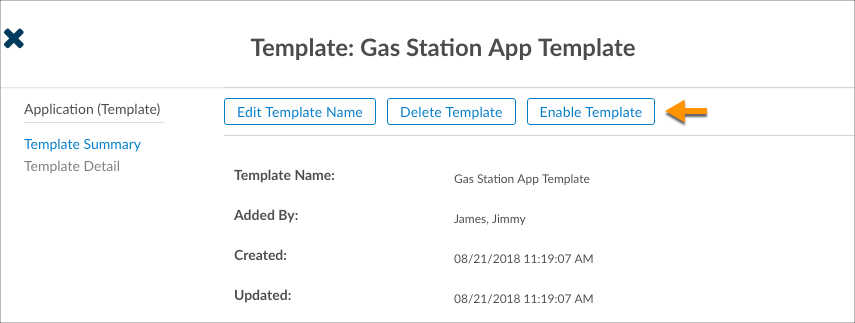
When finished, click Template Summary in the left nav, and then click Enable Template.



Please note that the Hosted Application Page is currently available to ISV partners only.
Enabling the template displays a URL link for the application. You can share this link with any merchant whom you wish to complete this specific application template.
Application Templates can be modified at any time. Simply navigate to Dashboard > Application Templates and select the desired template from the list.
What's Next?
When a merchant clicks the link that you provided to the Hosted Application Page, they are presented with the following screen where they are prompted to complete the application.
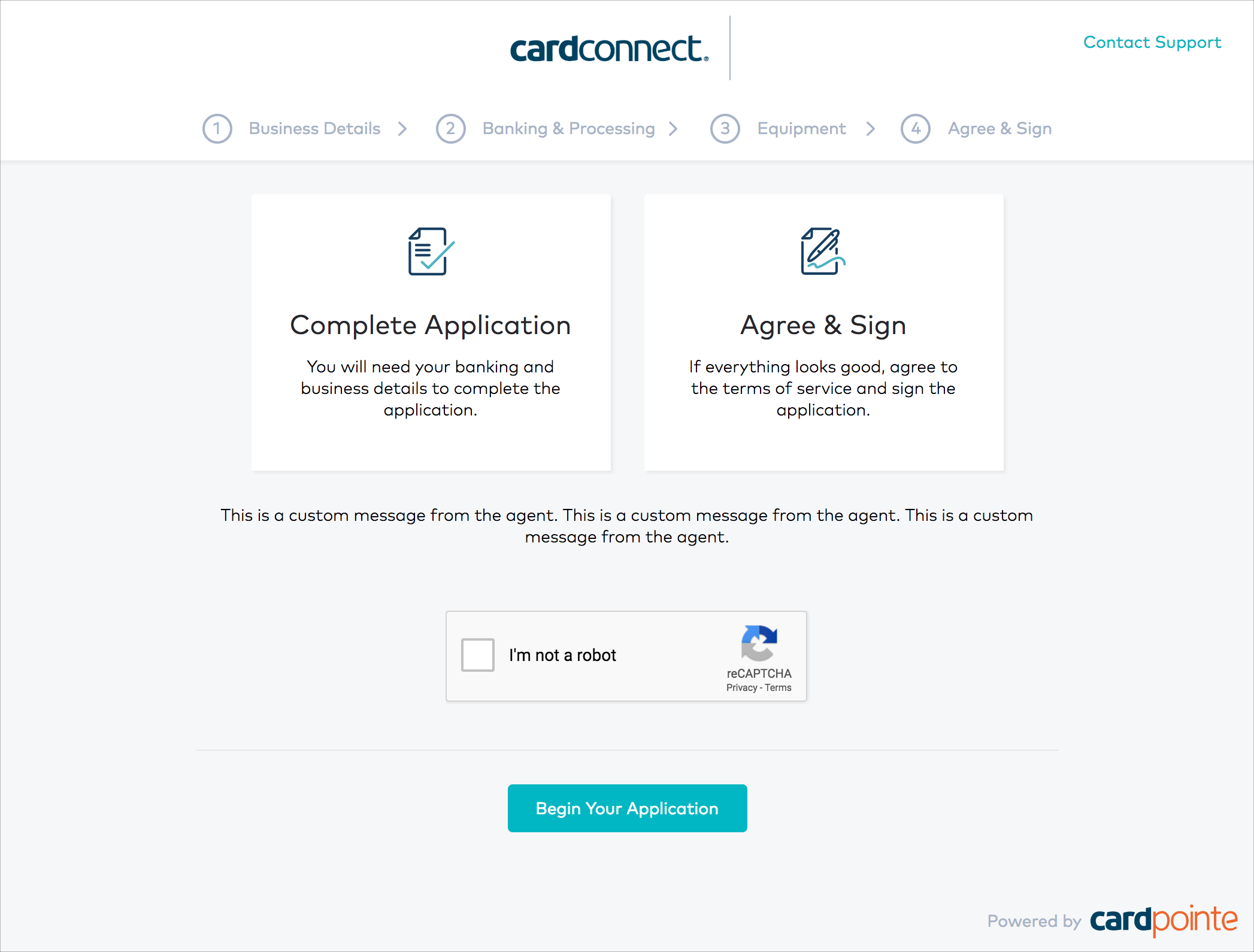
Clicking Complete Application walks the merchant through the various sections of the app that require completion, including their Business Details, Banking and Processing information, and any Equipment that they wish to choose.
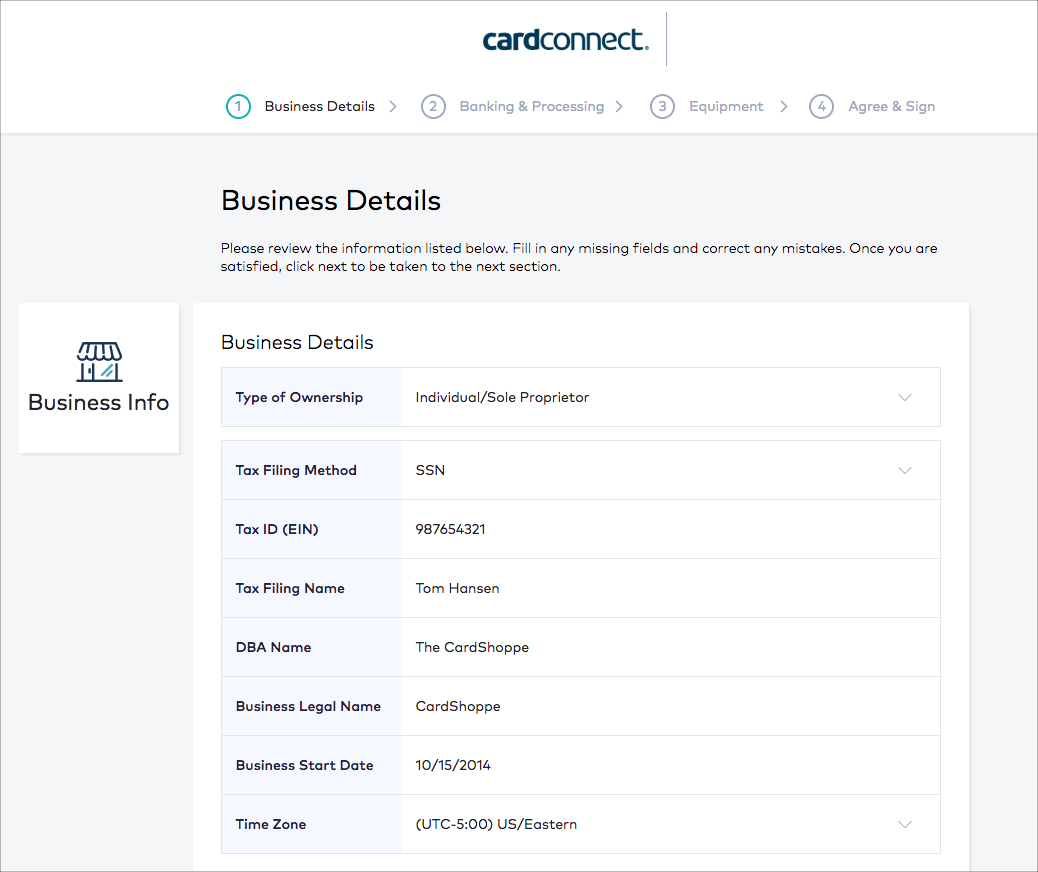
Upon completing the application details, the merchant must agree to the terms and digitally sign the application.
Additional CoPilot Documentation
Interested in learning how to use other CoPilot features? We have you covered! Click here to view the CoPilot user documentation on this site.